Delete Account & Data
Last updated: August 4, 2026
GrepCut Studio and Open Clipper share one cloud account
If you sign in with the same email in both apps, deleting your account in either GrepCut Studio or Open Clipper permanently removes that shared GrepCut cloud account. You do not need to delete twice - one successful deletion applies to both products.
1. Overview
This page explains how to delete your GrepCut cloud account and related personal data for GrepCut Studio (web / desktop studio) and Open Clipper (Windows app). Use this URL as the data-deletion instructions page for platform reviews and privacy requests.
Deleting your cloud account removes server-side account data such as:
- Your user profile and sessions
- Projects and media library records stored in our database
- Chat sessions, social connection tokens, and publish job metadata
- Active Paddle subscriptions (canceled as part of deletion when possible)
It does not automatically remove:
- Files that remain in your Google Drive (Drive folders are not bulk-deleted on full account deletion)
- Local Open Clipper project files, SQLite databases, or downloaded ML models on your computer
- Videos already published to YouTube, TikTok, Facebook, Instagram, or other third-party platforms
2. GrepCut Studio (web)
To permanently delete your GrepCut Studio account:
- Sign in to GrepCut Studio and open the Dashboard.
- Open Settings from the top navigation (or the bottom tab bar on mobile).
- Scroll to the Danger zone section at the bottom of Settings.
- Click Delete account.
- In the confirmation dialog, type DELETE and confirm with Delete account.
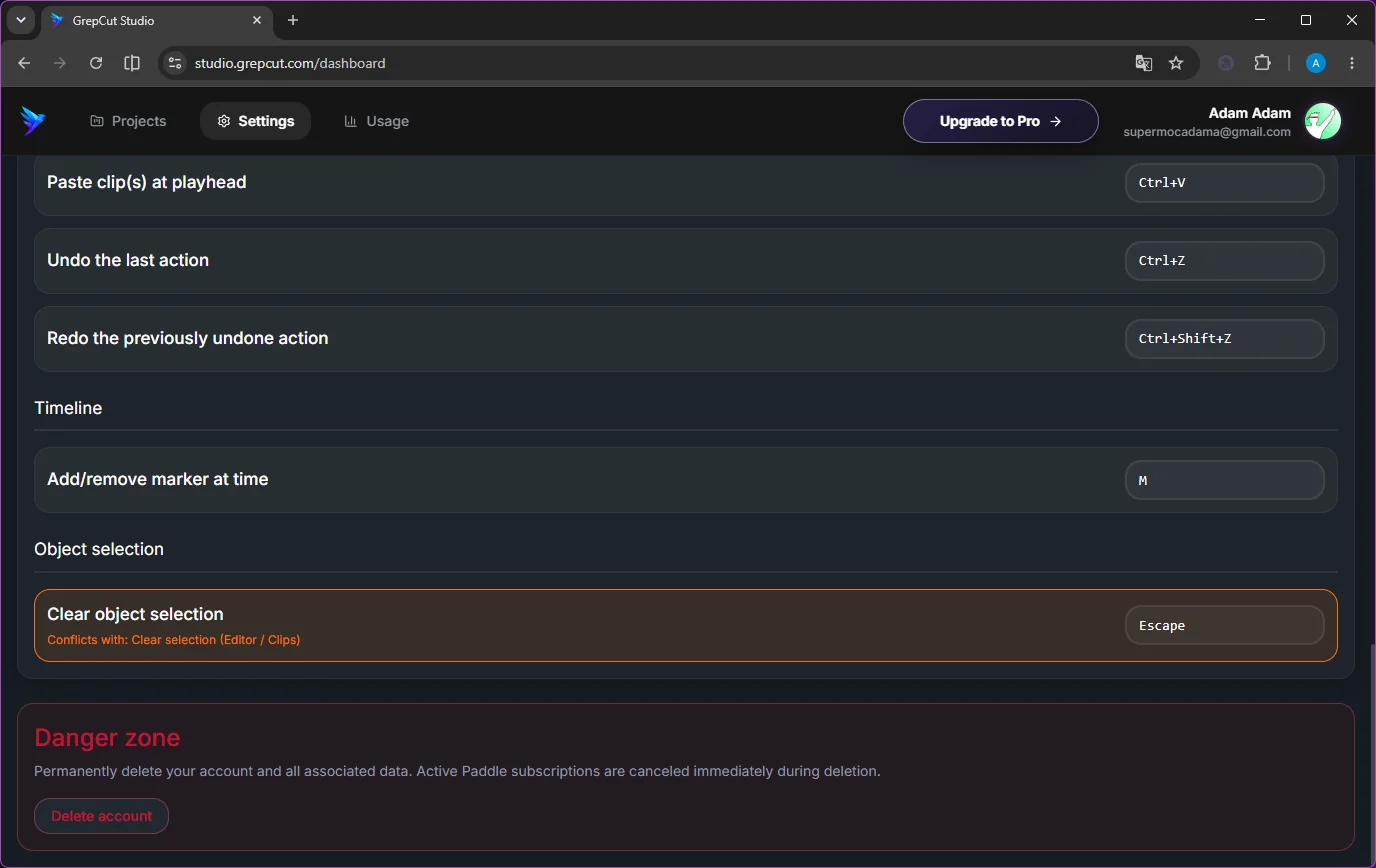
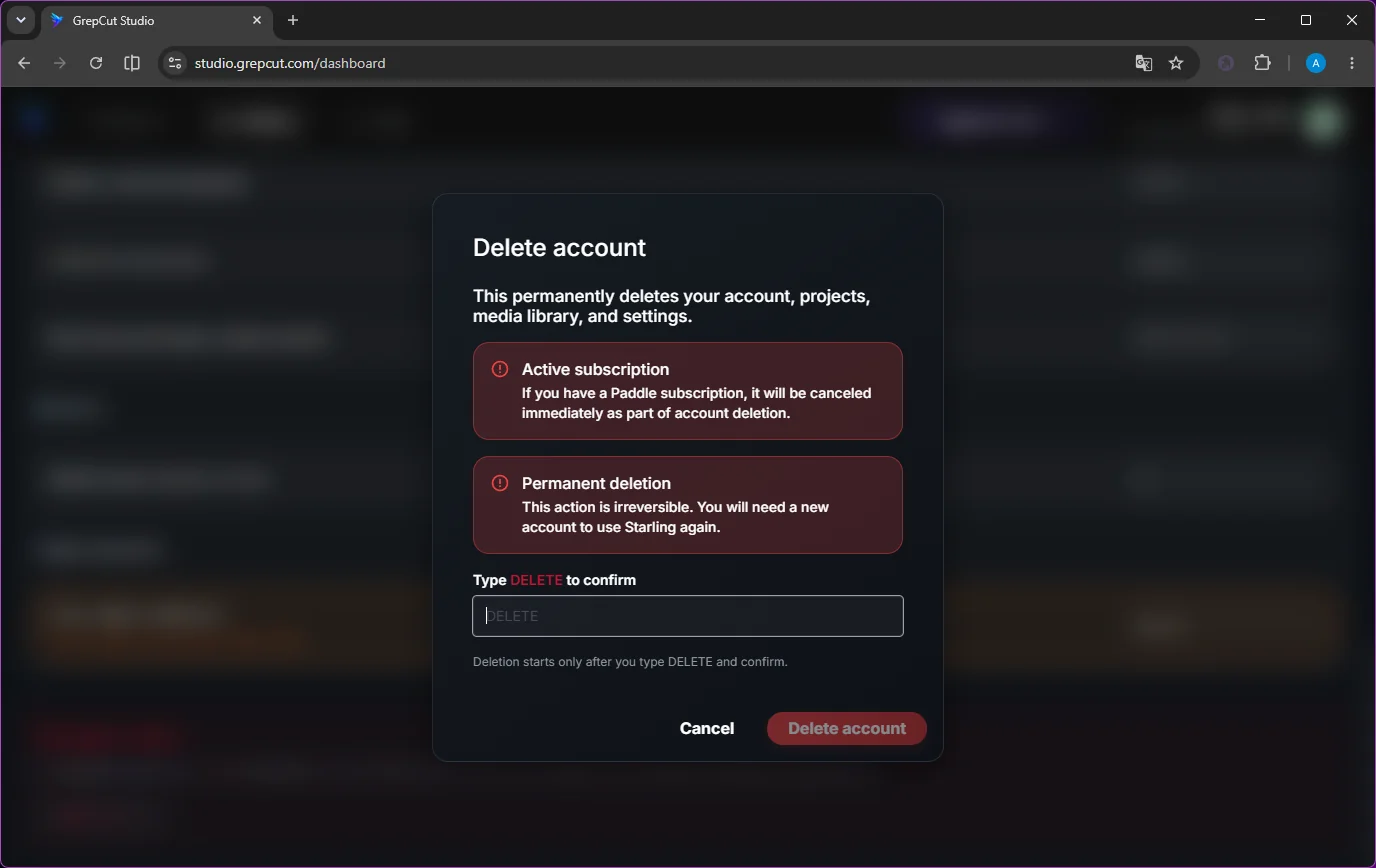
After a successful deletion you are signed out and redirected to the sign-in screen. Your cloud account, projects, media library records, and settings are permanently removed. If an active Paddle subscription cannot be canceled automatically, cancel it first under the Usage tab, then try again.
Note: Media files that live in your Google Drive are not comprehensively purged when the account is deleted. You can remove Drive files yourself, or delete individual Media Library items from the editor before closing the account (library delete removes the Drive file for that item).
3. Open Clipper (desktop)
3.1 Delete your cloud account
You must be signed in with an online session (not guest / offline-only).
- Open Open Clipper on your Windows device.
- Go to Settings.
- Open the Delete account / Danger zone section.
- Confirm deletion by typing DELETE and submitting the request.
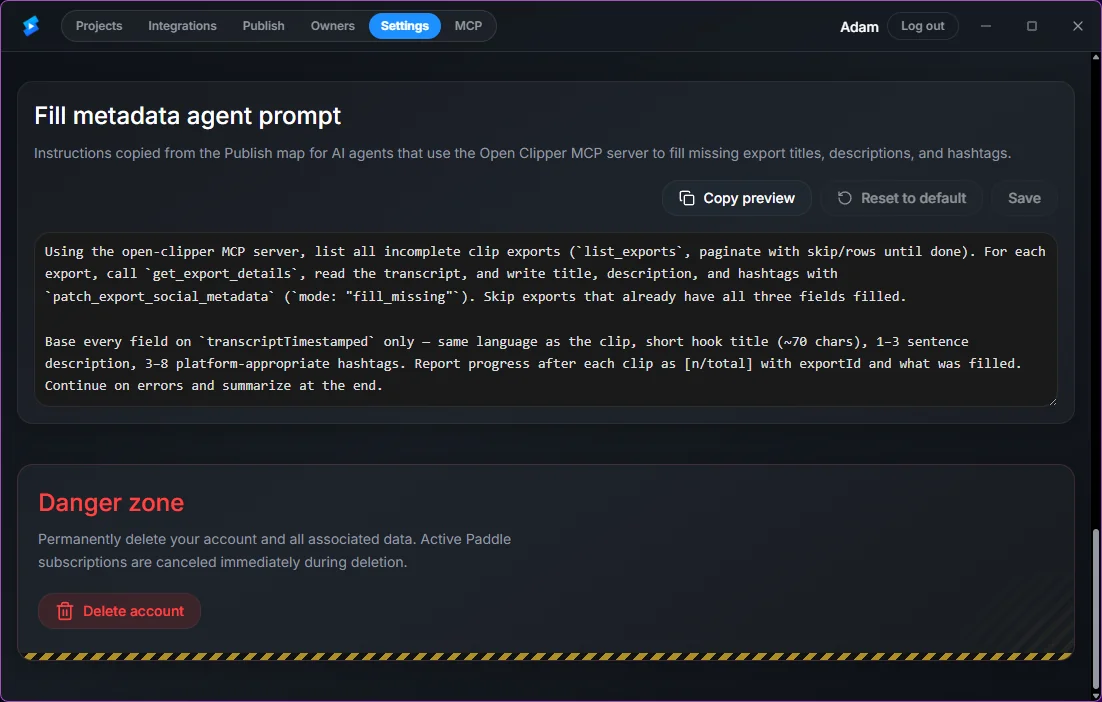
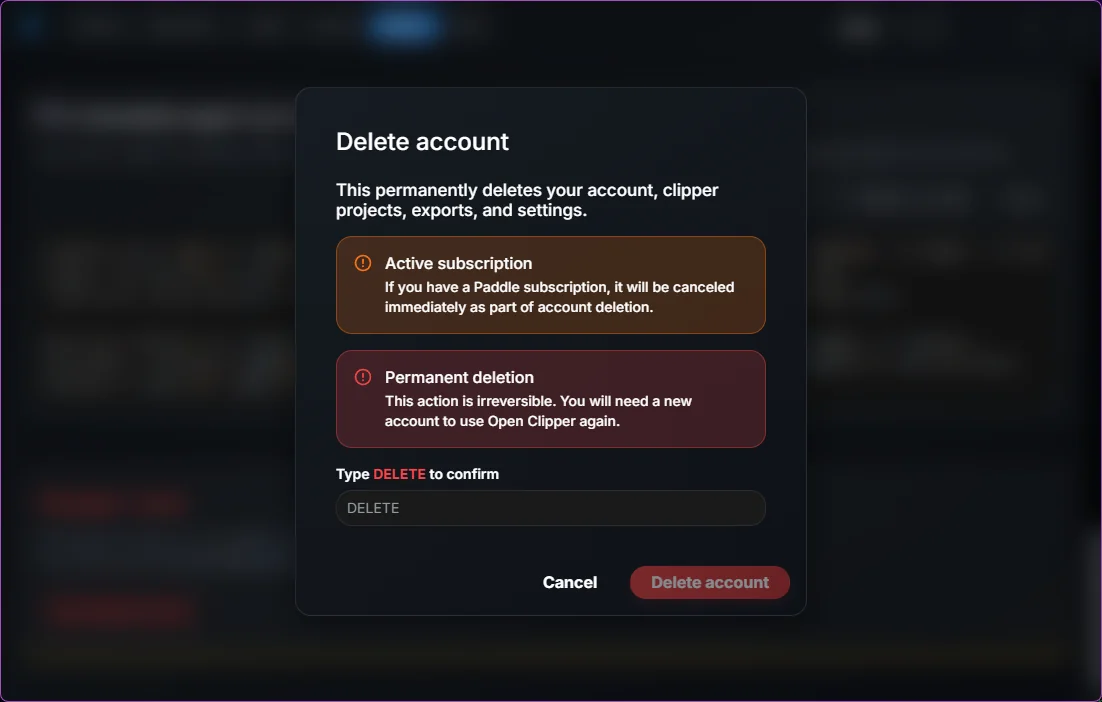
This deletes your GrepCut cloud account data used by Open Clipper, including social connections, publish job records, and sessions. If a Paddle subscription is linked, we attempt to cancel it as part of deletion. You are then signed out.
Important: Cloud account deletion does not wipe local projects, exports, SQLite data, or models stored on your PC.
3.2 Delete local data on your device
Choose one of the following:
Option A - from inside the app
- Open Projects and delete each project you want removed (this also removes that project's on-disk folder).
- Optionally delete remaining exports under Publish (slide to delete), remove downloaded transcription models under Settings, and disconnect social integrations under Integrations.
Option B - full local wipe
- Quit Open Clipper completely.
- Delete the app data folder:
%APPDATA%\com.openclipper.app
(This removesclipper.sqlite3,projects\, andmodels\.) - Optionally also remove WebView / local settings under
%LOCALAPPDATA%\com.openclipper.appand any Studio import staging folder under%USERPROFILE%\Documents\OpenClipper\studio-import\.
Uninstalling Open Clipper alone typically does not remove %APPDATA%\com.openclipper.app. Delete that folder manually for a complete wipe.
3.3 Meta (Facebook / Instagram) platform data
If you connected Open Clipper to Facebook or Instagram and want us to delete Platform Data we received from Meta:
- Follow the cloud account deletion steps above, or email privacy@grepcut.com with your request.
- You may also remove Open Clipper from your Facebook account at Facebook Apps and Websites and request deletion there.
We delete associated social tokens and publish metadata within 30 days of a valid request, except where retention is required by law.
4. Request deletion by email
If you cannot use the in-app flow, email privacy@grepcut.com from the address associated with your account. Include:
- The email used for your GrepCut account
- Whether you use GrepCut Studio, Open Clipper, or both
- Any Meta / social connection details relevant to your request
We respond within 30 days.
5. What is not deleted automatically
- Content already published to third-party platforms (YouTube, TikTok, Meta, etc.) - remove it on those platforms if needed.
- Google Drive folders/files that remain under your Drive account after project or account deletion.
- Open Clipper local app data until you delete projects in-app or wipe
%APPDATA%\com.openclipper.app. - Payment records we must retain for legal/tax purposes (typically up to 7 years), even after account closure.
6. Related policies
See also our Privacy Policy, Open Clipper data-deletion section, and Contact page.