Short-form viewers scroll when nothing changes on screen. B-roll is supplementary footage you cut to so they watch longer without getting bored: it illustrates your points, hides jump cuts, and keeps the pace on TikTok, Reels, and Shorts. It holds attention.
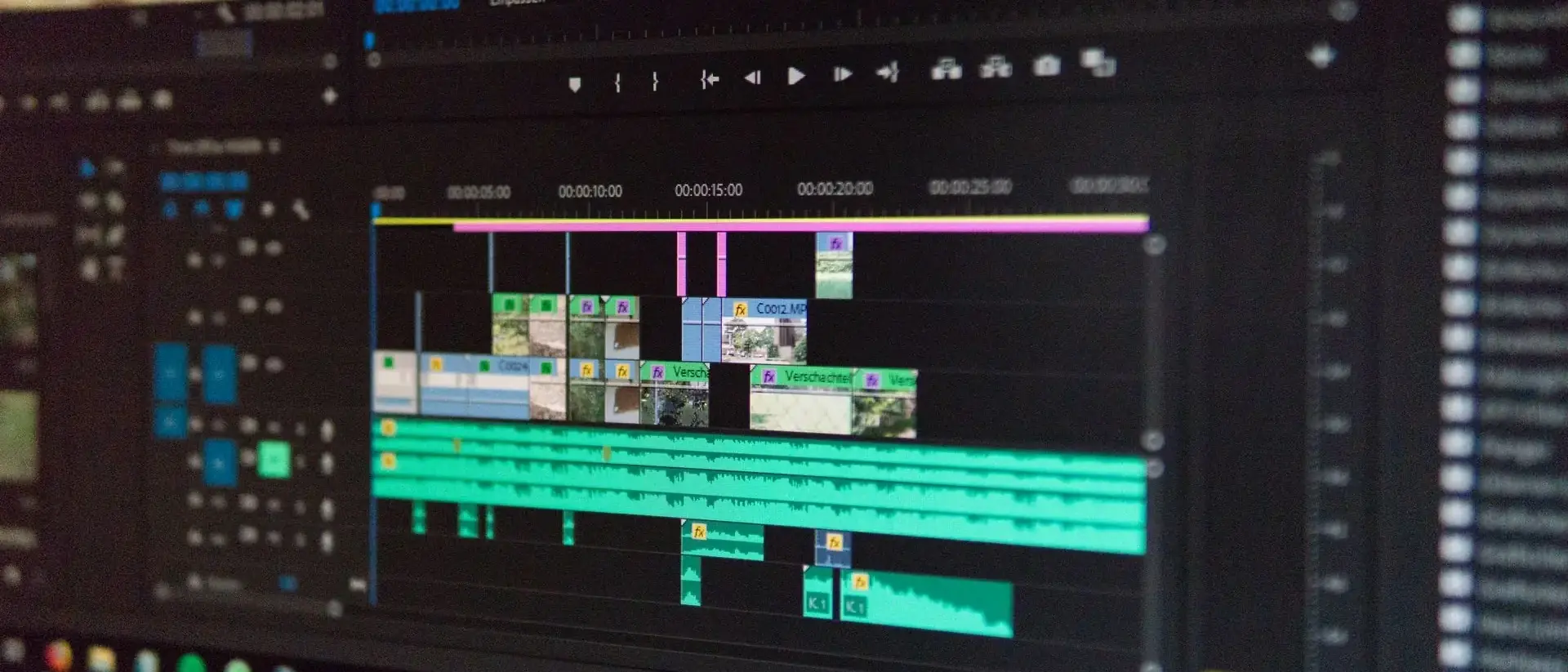 Alex Fu · Pexels
Why Talking Heads Lose Viewers
Short-form platforms like TikTok, Reels, and Shorts are built on rapid-fire engagement. A viewer decides in the first second whether to keep watching. If your video is a single static shot of you speaking, you are asking them to commit to a talking head with no visual payoff. Even if your content is valuable, the monotony drives people away. Visual variety is the antidote: when you cut to B-roll, you reset the viewer's attention and each new shot gives them a reason to stay. This is not about flashy effects; it is about matching the pace of the platform. A cut every few seconds feels natural, while a long take feels like a lecture.
What B-Roll Actually Does (and Doesn't Do)
B-roll serves three practical purposes in short-form video:
- Cover cuts: When you remove a pause, a mistake, or a breath, you need something to fill the gap. B-roll hides those edits seamlessly.
- Illustrate points: If you are talking about a product, a process, or a place, showing it is more engaging than describing it.
- Add rhythm: Frequent cuts create a dynamic pace that matches short-form viewing habits.
But B-roll is not decoration. It should support your narrative, not distract from it. A common mistake is throwing in random stock footage that has nothing to do with what you are saying. That confuses viewers and breaks trust. Every B-roll clip should have a reason to exist.
The 3-Second Rule for Short-Form Pacing
A practical guideline: aim for a cut every 2 to 4 seconds. In a 30-second video, that means 8 to 15 cuts. B-roll should cover roughly 40 to 60% of your video, depending on how fast you want the pace to feel.
 KoolShooters · Pexels
Match the B-roll to the spoken word. If you say "our app syncs in real time," show a screen recording of the sync happening. If you mention a location, show a quick shot of that place. The B-roll should reinforce the audio, not compete with it.
Where to Get B-Roll Fast (Without a Camera Crew)
You do not need a production team to get good B-roll. Here are the fastest sources, from cheapest to more polished:
Free stock: start with Pexels and Pixabay
The fastest and cheapest path is free stock libraries. Pexels and Pixabay both offer high-quality clips you can download and use in short-form video, often with no attribution required (check each clip's license). Search for keywords tied to your topic, but filter for vertical 9:16 footage up front instead of downloading landscape clips and cropping later. Grab a few short clips in the right aspect ratio and you are ready to edit. For most talking-head shorts, this is enough.
Record it yourself (often better than stock)
Shooting B-roll on your phone is free and often more authentic than generic stock. A quick close-up of your product, a pan across your workspace, or a walk-through of a real location matches your story better than a clip thousands of other creators have used. You do not need a camera crew, just stable hands and decent light.
Generate B-roll with AI
When stock sites do not have the exact shot you need, you can generate custom footage with AI video tools. Free tiers exist on some platforms, but the most cinematic results usually come from a subscription. Higgsfield bundles top video models (Kling, Sora, Veo, and more) in one workspace, useful for abstract concepts or scenes you cannot shoot yourself. Treat AI clips like stock: match color and crop so they blend with your A-roll.
Other quick sources
- Screen recordings: If you are talking about software, a screen recording is the most relevant B-roll you can get. Use your phone or a free screen recorder.
- Product shots: If you have a physical product, shoot a few close-ups with your phone. Even a simple pan or zoom adds visual interest.
- Repurpose existing footage: If you have longer videos, pull clips from them. This is especially useful for podcasters and YouTubers repurposing content.
No B-Roll Yet? Add Variety From the Same Shot
When you cannot cut away to separate footage, you can still break up a static talking head with simple edits on your A-roll:
- Punch-in zoom: Crop or scale into your face for a beat, then cut back to the wider frame. It reads like a new shot without filming anything extra.
- Second angle: Record from another position (phone to the side, over the shoulder, or a second take from farther back). Cutting between angles on the same lines adds visual variety even when the script does not change.
- Horizontal flip: Mirroring the clip on the X axis can hide a jump cut after you remove a long pause. It works in a pinch, but viewers notice flipped text, logos, or asymmetric backgrounds. Use it rarely, and prefer zoom or angle changes when you can.
These tricks do not replace real B-roll for illustrating ideas, but they help when you are editing fast or only have one camera angle.
A Simple B-Roll Workflow
Here is a step-by-step workflow to add B-roll to your short-form video.
Step 1: Gather Your Clips
Collect your A-roll (the talking head) and your B-roll clips. They can come from your phone, a DSLR, a screen recording, or stock sites.
Step 2: Trim and Cut B-Roll
Trim the start and end of each B-roll clip and cut out sections that do not fit. Split longer clips into 2-4 second pieces, the length that works best for short-form pacing.
Step 3: Layer Over Your A-Roll
Import trimmed B-roll into your editor (CapCut, Premiere, DaVinci, or a mobile app). Place clips over your talking head at the right moments, usually when you start a new sentence or right after a breath. Match each cut to what you are saying.
B-Roll Mistakes That Make Videos Worse
Avoid these common pitfalls:
- Over-cutting: Too many cuts can feel frantic. Stick to the 2-4 second rule and let some shots breathe.
- Irrelevant footage: If the B-roll does not relate to what you are saying, it will confuse viewers. Keep it on-topic.
- Mismatched pacing: If your B-roll is too fast or too slow compared to your speech, it feels jarring. Match the cut timing to the natural rhythm of your words.
Hold Attention From Start to End
B-roll and fast cuts help, but keeping viewers through the last second is a separate skill. You need to see what actually holds attention across the full video, not just in the opening seconds.
Build your own reference list. Save shorts and Reels you watched to the end. Note what happened at 0:05, 0:15, and right before the payoff. A personal swipe file beats generic tips because it reflects what works in your niche and on your feed.
Study creators who retain. Pick accounts in your space and watch carefully. Do not scroll on autopilot. Pause when something resets your attention: a new angle, a B-roll cut, on-screen text, a beat in the script. Write down the pattern, not the exact words.
Peek at how others edit. Rewatch the same video and focus on the edit, not the topic. When do they cut away from the talking head? How long does each shot last? Does the pace pick up toward the end? Most retention tricks stay invisible until you look for them.
Watch with intent. Copy the structure, not the niche. Learn rhythm and payoff timing, then apply it to your own footage and B-roll choices.
Final Checklist (Quick Reference)
Before you publish your next short-form video, run through this checklist:
- Have a cut every 2-4 seconds.
- B-roll covers 40-60% of the video.
- Every B-roll clip supports the narrative.
- B-roll clips are trimmed and placed on the beat.
- B-roll matches the color and pace of your A-roll.
FAQ
What is B-roll in short-form video?
B-roll is supplementary footage that cuts away from the main talking-head shot. It illustrates points, covers edits, and adds visual variety.
How much B-roll do I need?
Aim for a cut every 2-4 seconds and B-roll covering 40-60% of your video. Adjust based on your pacing and content.
Find GrepCut Studio on grepcut.com.
GrepCut
Author of this article