As a coach, you record calls and sessions all week. Turning a long recording into short clips for TikTok, Reels, or LinkedIn should be easy. It often is not. Many tools charge per minute, or put their logo on your video if you use the free plan.
OpenClipper is different. It is a free Windows app on your computer. You add your recording, the app does most of the work, and you get clean clips with no logo and no per-minute fee. Post or share the same day.
 Budgeron Bach · Pexels
Why Coaches Need an AI Clipper (Not Just a Video Editor)
A full video editor like CapCut or Descript gives you total control, but hunting through a timeline for the best moments is not practical when you coach all week. Coaches need highlights the same day the session happens, for Reels, TikTok, LinkedIn, or Shorts, and short recap reels that replace sending clients a full recording. A clipper batches that work: turn speech into text once, split into clips, fit them for vertical video, add captions, and export without hours of manual editing.
Free Local Clipping: No Per-Minute Fees or Watermarks
Cloud clippers like Opus Clip, VEED, and Descript are built around usage limits: per-minute processing, clip credits, subscription tiers, and watermarks on free exports. Clip a 60-minute session every week and those costs stack, or you end up sharing clips that look unprofessional with a logo burned in.
OpenClipper flips that model. On Windows you can import a recording, turn speech into text with DirectML on your PC, split it into clips, autoreframe for vertical and square formats, add captions from 20+ presets, and export a batch with no per-minute limit. Local editing and saving to disk work without a GrepCut account.
Because files stay on your PC, you are not uploading full sessions to someone else's servers. That matters when clients talk about personal or business topics. The main win is simple: free clips on your computer, with no logo and no meter on minutes.
How to Clip a Coaching Session with OpenClipper (Step-by-Step)
This walkthrough takes you by the hand from a raw session recording to posted highlights. The workflow is deliberately short: upload, pick clips, export. Most of the work happens automatically once your file is in.
Step 1: Download and open OpenClipper
Get the free app from GitHub or the OpenClipper product page. Install it on Windows like any other desktop program.
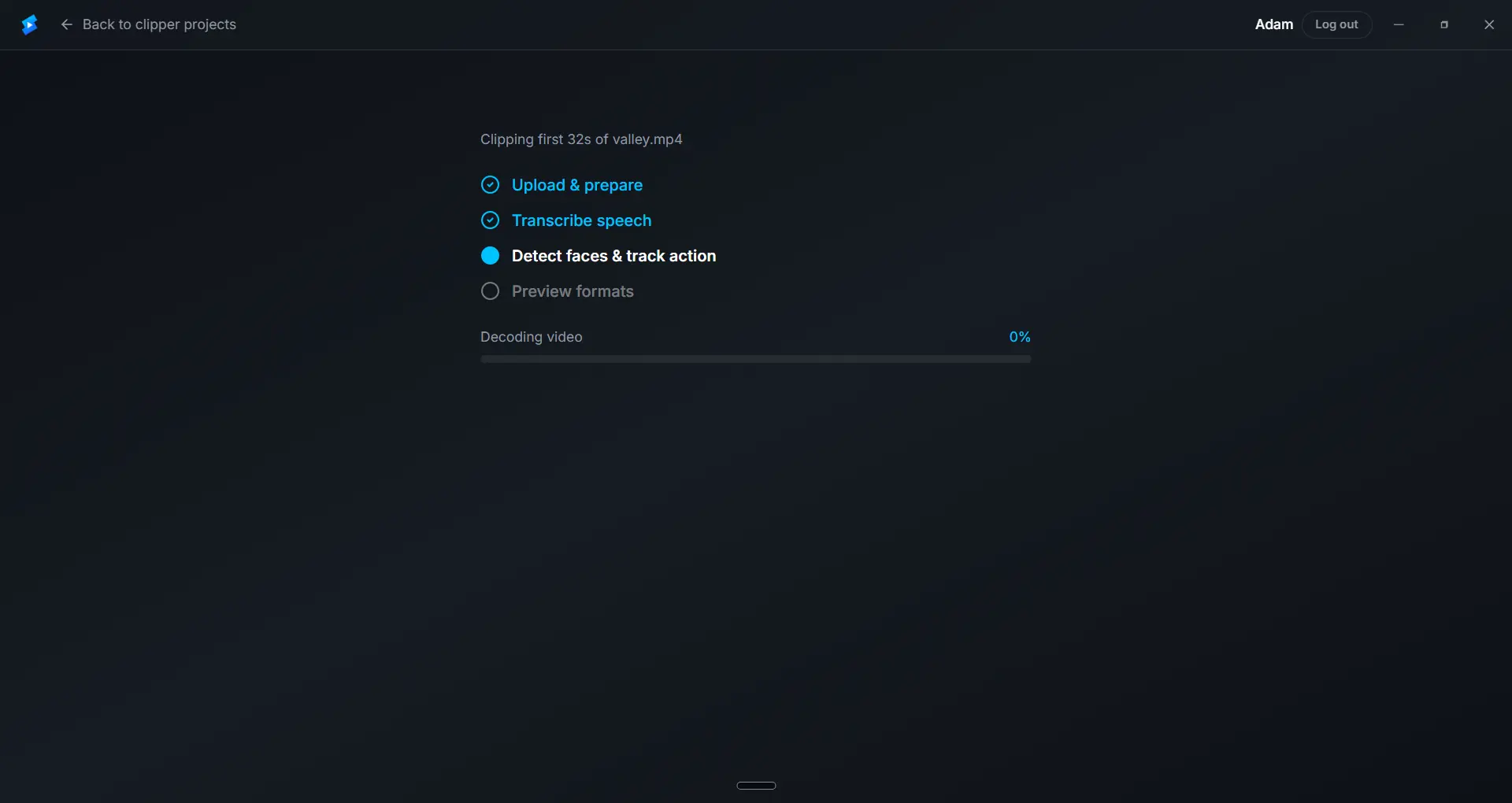
Step 2: Import your session (about 90% of the work runs itself)
Drag in your coaching call, webinar replay, or Zoom export and select the range you want. That single import kicks off the heavy lifting:
- Local transcription with DirectML on your PC. You get a searchable transcript, with no timeline scrubbing.
- Autoreframe for 9:16, 4:5, 1:1, and 16:9. OpenClipper keeps you centered in vertical and square crops automatically. You do not need to reposition every clip by hand.
- Caption styling from 20+ presets, ready to preview on your footage.
By the time transcription finishes, roughly 90% of a traditional edit is already done: the words are ready, framing is handled, and captions are one click away. Optional cleanup helps when background music makes speech harder to catch.
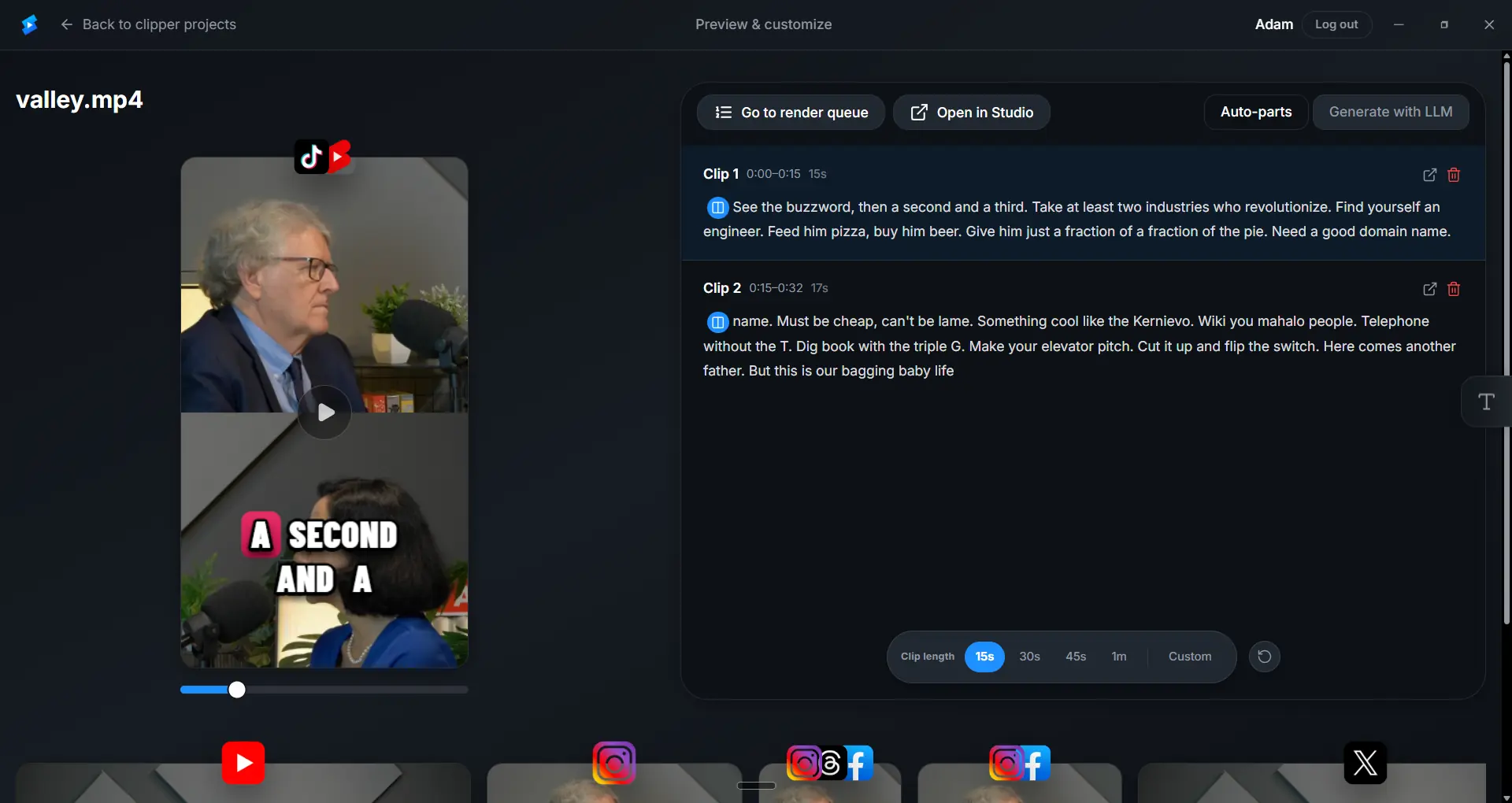
Step 3: Pick the clips you want (Auto-parts or AI clips via MCP)
The only real decision left is which moments to ship. Choose one path (or mix both):
- Auto-parts: one click splits your range into short segments (about 60 seconds by default). Fast way to turn a 60-minute call into a batch of shorts without reviewing every second.
- AI clips (MCP): connect an AI assistant like Cursor or Claude, point it at your transcript, and let it mark the best moments. Ideal for hooks, breakthroughs, and takeaways. No second clipping subscription.
Scan the list, keep the strongest clips, and delete the rest. Autoreframe and captions already follow each selection. Nothing extra to set up per clip.
Step 4: Export and optionally publish straight to social
Queue a batch export and save watermark-free files to your project folder. Clips are already reframed and captioned, so there is no separate reframe step before export.
Want to skip the manual upload? Sign in and connect your social accounts inside OpenClipper. You can publish selected clips directly to linked platforms from the export flow instead of dragging files into each app.
Need Full Control? Open in GrepCut Studio
When a clip needs extra polish, click Open in Studio inside OpenClipper. Your browser opens GrepCut Studio and pulls the clip straight from OpenClipper on your PC. Nothing uploads to the cloud. Keep OpenClipper running while Studio loads the clip.
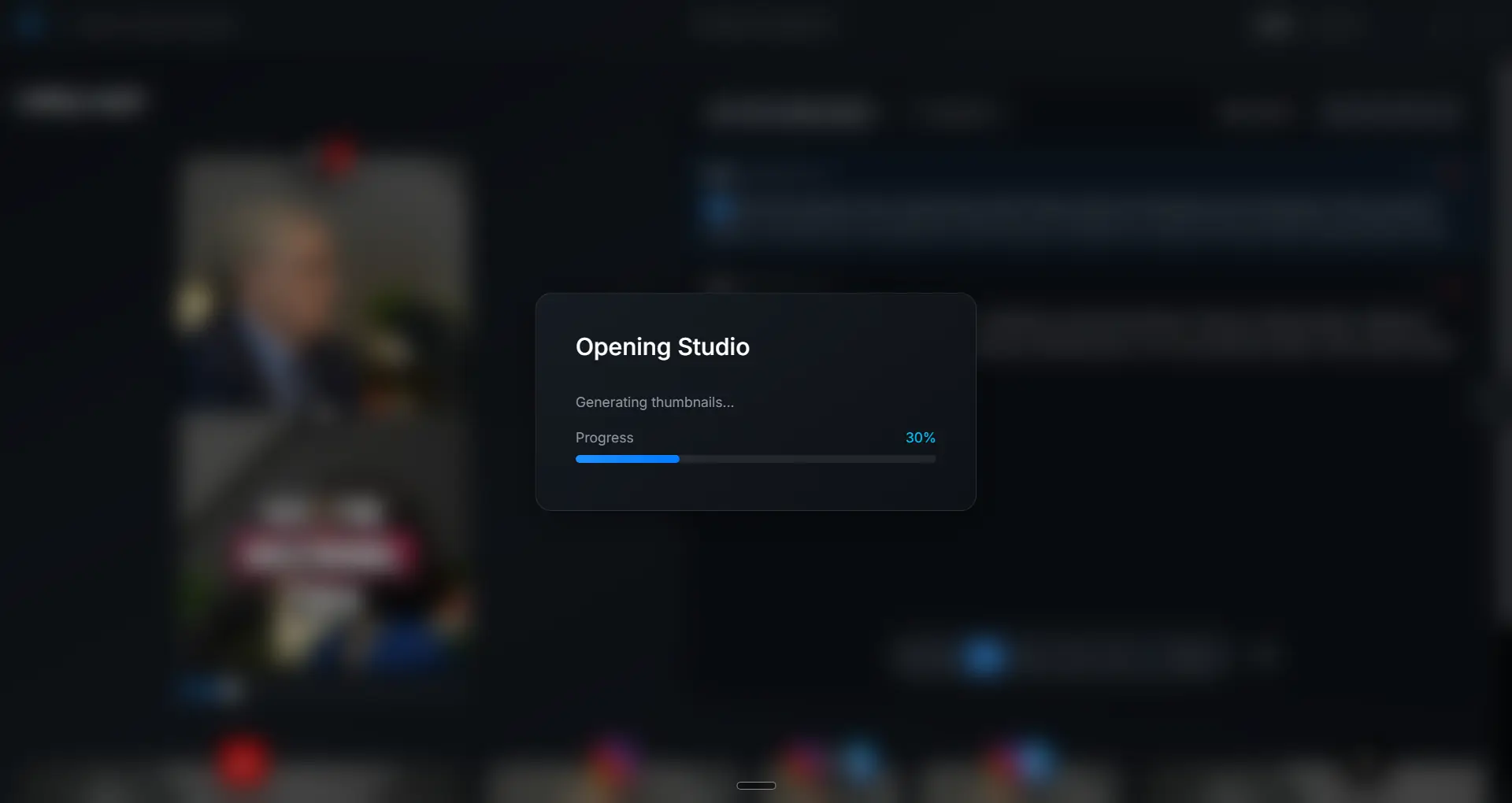
In Studio you get the full online editor: precise trims, caption tweaks, and export exactly how you want. Quick clips stay in OpenClipper; deep edits happen in Studio while files still move locally between the desktop app and your browser.
MCP Integrations: Use the AI You Already Have
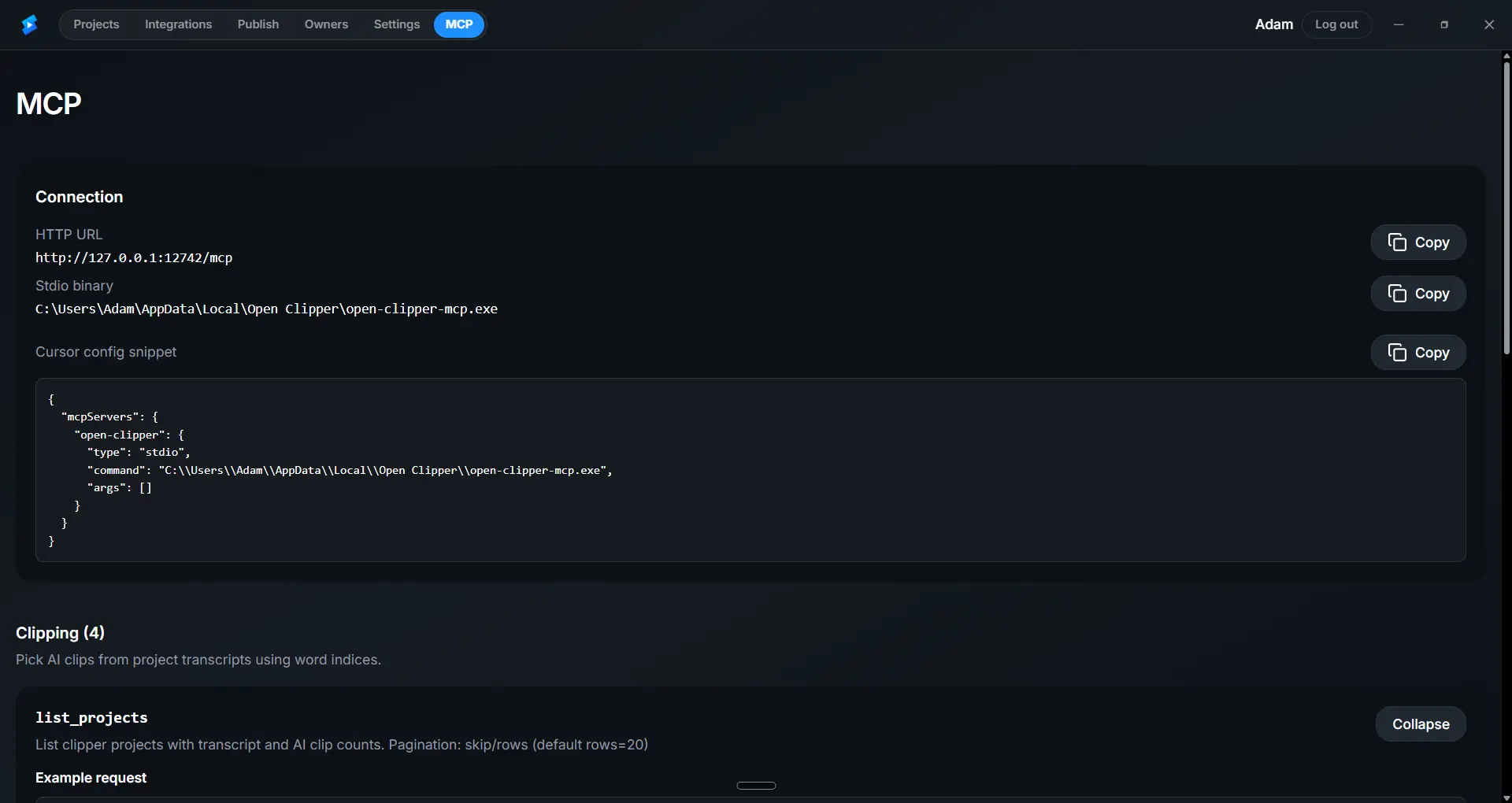
OpenClipper works with AI tools you already use, like ChatGPT, Claude, or Cursor. Open the MCP tab in the app, copy the ready-made setup, and connect. No login required.
Your AI reads the session transcript and picks highlight moments for you. The clip list updates in OpenClipper right away. No second clipping subscription and no Opus Clip-style per-minute fees.
What to Clip: 3 High-Impact Moments for Coaches
Not every moment in a session is worth clipping. Focus on these three types when using MCP or reviewing auto-parts output.
The "Aha" Moment
When a client has a breakthrough realization, that's gold. It's emotional, relatable, and shows the value of your coaching. Clip the moment where the client says, "Oh, I get it now."
The Actionable Takeaway
Coaching sessions often end with a clear next step or a framework the client can apply. Clip that part. It gives your audience something practical they can use, which builds credibility.
The Emotional Beat
A powerful story or a moment of vulnerability can be deeply engaging. If a client shares something moving, that clip can connect with your audience on an emotional level.
OpenClipper vs. Opus Clip vs. Descript for Coaches
| Point | OpenClipper | Opus Clip | Descript |
|---|---|---|---|
| Cost | Free Windows app; no per-minute clip fees | Per-minute limits, credits, or subscription | Subscription or credit-based pricing |
| Watermark | No watermark on exports | Watermark on free tier | Watermark on free tier |
| Processing | On your Windows PC with DirectML | Cloud servers after upload | Cloud servers after upload |
| Privacy | Files stay on your device | Full recording uploaded to their servers | Full recording uploaded to their servers |
| Platform | Windows desktop app | Web-based | Desktop + web |
| Workflow | Upload, pick clips, export or publish to social | Cloud clipper with bundled AI minutes | Full editor; steeper learning curve |
| AI assist | AI clip picking via MCP; no in-app chat | Paid AI minutes in subscription | Paid AI features in subscription |
For coaches who clip every week, free local exports beat per-minute cloud bills.
Frequently Asked Questions
Is it really free?
Yes. Import, transcription, clipping, reframing, captions, and export to disk are free on your PC. No per-minute fee and no watermark.
Does it work on my laptop?
OpenClipper runs on Windows today. DirectML uses your graphics card to speed up transcription, reframing, and export when it is available. You do not need a browser for the clipper itself.
What about client confidentiality?
Clipping runs locally, so session files stay on your PC instead of a third-party cloud. That is a privacy bonus on top of the free, watermark-free exports.
Conclusion
Coaches need highlight clips without per-minute bills or watermarked exports. OpenClipper delivers: free local clipping with DirectML, batch export, captions, and optional MCP-driven moment picking on your Windows PC.
Download OpenClipper from GitHub or grepcut.com/en/open-clipper. Clip for free, export clean, and keep files local.
GrepCut
Author of this article